If you want to download Gamma IPTV on Firestick, the first thing to know is that you are not looking for a “Gamma IPTV app”. Gamma IPTV is the service: the channels, the TV guide and the on-demand library. What you install on the stick is a player app, and you sign in to that player with the login details from your Gamma IPTV dashboard.
That sounds like an extra step, but it is good news. You get to use a player that is built for the Fire TV remote, and if one app ever gives you trouble you can switch to another one with the same login in a few minutes.
This guide walks through every step on a real Fire TV Stick, from checking your model to the first channel test. Plan on about ten minutes, most of it spent waiting for downloads.
Quick answer: the four steps
If you have set up a Firestick before, this is all you need:
- Check your model. Settings → My Fire TV → About. Note the model name and the software version.
- Install the player named in your Gamma IPTV dashboard. Use the Amazon Appstore when the player is listed there; use Downloader only when the dashboard gives you a download code.
- Sign in with Xtream Codes: server URL, username and password, copied exactly from the dashboard.
- Test before you organise: one live channel, the TV guide and one movie. Then add favorites.
Everything below explains each step in more detail, with the mistakes we see most often in support.
How Gamma IPTV gets to your Fire TV Stick
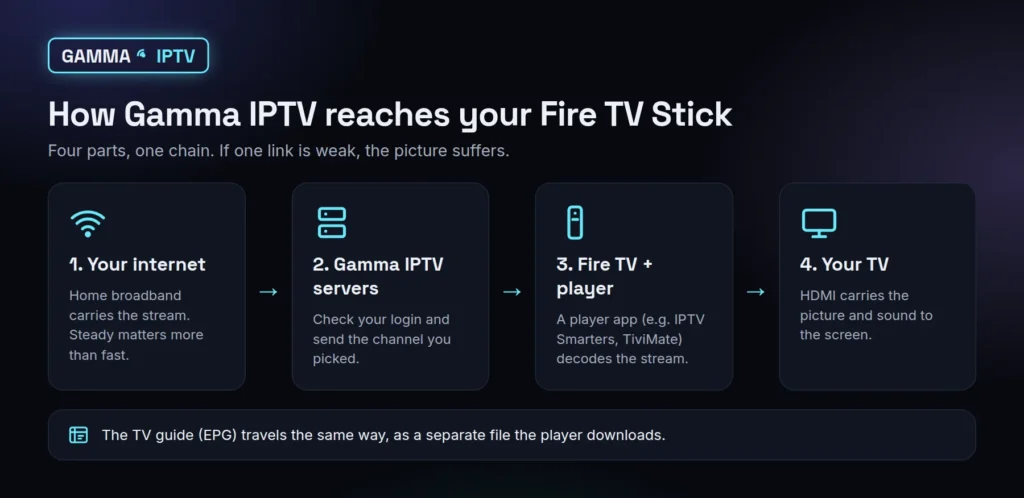
It helps to picture the chain, because every problem you might meet later sits in one of its links:
- Your internet connection carries the stream into the house. For live TV a steady connection matters more than a fast one.
- Gamma IPTV’s servers check your login and send the channel you picked.
- The player app on the Fire TV Stick turns the stream into picture and sound and shows the channel list and TV guide.
- Your TV just displays what the stick sends over HDMI.
The TV guide (EPG) travels the same way, as a separate file the player downloads in the background. That is why the guide can appear a minute or two after the channels the first time you sign in. If you want the background story, what IPTV is and how it works covers it in plain English.
Step 1: find out exactly which Fire TV you have
Fire TV devices look alike, but they do not all run the same software. Before following any install guide, ours included, check what yours is:
- From the home screen, open Settings (the gear icon on the far right).
- Go to My Fire TV → About.
- Write down the device name (for example “Fire TV Stick 4K Max”) and the software version.
Most Fire TV Sticks run Fire OS, which is based on Android and can install Android player apps. Amazon has started moving some newer devices to a different system called Vega OS, and those cannot install Android app files at all. If your stick runs Vega OS, use a player from the Appstore only, and contact our support team if you cannot find one that works. Amazon’s own device pages list which system each model uses.
Very old first-generation sticks will run Gamma IPTV, but they can be slow with large channel lists and a full TV guide. If yours struggles, our comparison of Firestick vs Android TV box explains what to upgrade to.
Step 2: what you need before installing anything
Gather these before you pick up the remote. It saves a lot of back and forth:
- An active Gamma IPTV trial or plan. Your login details only appear in the dashboard once the trial is issued or your plan is active. No account yet? Start the free 24-hour trial; no card is needed.
- Your login details, open on your phone or computer: server URL, username and password. Keep them visible so you can copy them character by character.
- The name of the player app listed in your dashboard. Write down the developer name too, because the Appstore has a few lookalike apps.
- A working internet connection on the stick. Settings → Network should show “Connected”. If the stick is behind the TV on weak Wi-Fi, fix that now rather than later.
One point that confuses people: the player app and your Gamma IPTV plan are two separate things. Some players are free, some charge a small fee for extra features, and that fee goes to the app’s developer, not to us. Check both before paying for anything.
Step 3: prepare the Fire TV Stick (only for Downloader installs)
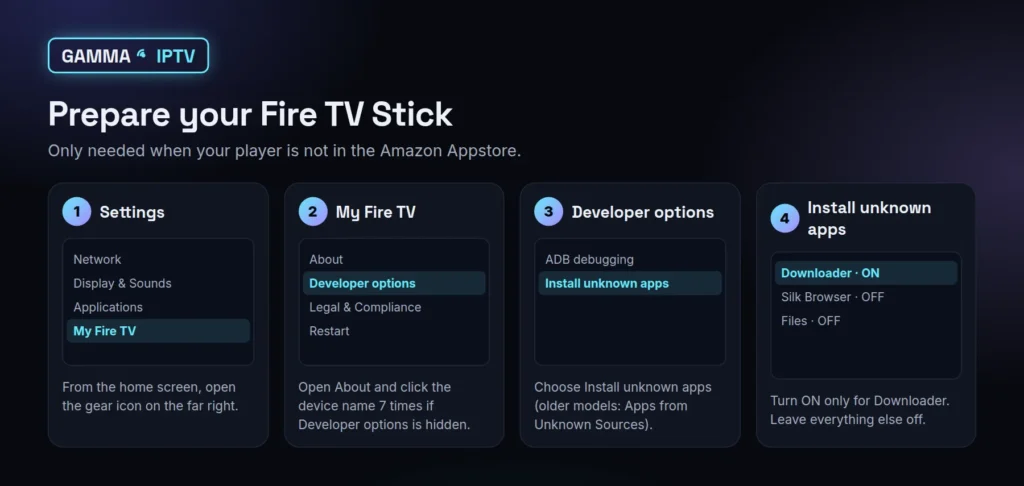
Skip this step if your player is in the Amazon Appstore. You only need it when your dashboard tells you to install the player with Downloader.
- Install Downloader from the Appstore first (search for “Downloader”, developer AFTVnews).
- Go to Settings → My Fire TV.
- If you do not see Developer options, open About, highlight your device name and press the select button seven times. A message confirms that you are now a developer.
- Go back to Developer options → Install unknown apps (older models call it Apps from Unknown Sources).
- Turn it on for Downloader only. Leave every other app switched off.
Allowing one trusted app is safer than switching the whole device to “unknown sources”. When the player is installed, you can come back here and turn Downloader off again.
Step 4: install your player app
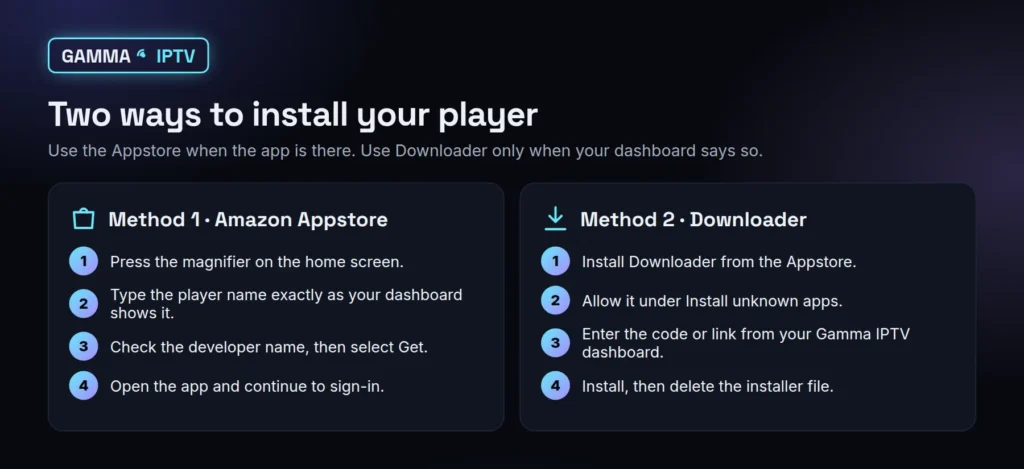
Method 1: from the Amazon Appstore (use this when you can)
- On the home screen, select the magnifying glass (Find → Search).
- Type the player’s name exactly as your dashboard shows it.
- Open the result and check the developer name before installing. Similar names are common.
- Select Get or Download, wait for the install, then select Open.
Appstore apps update themselves, which is one reason we recommend this route whenever the player is available there.
Method 2: with Downloader (when the player is not in the Appstore)
- Open Downloader and allow access to files if it asks.
- In the URL box, enter the code or link from your Gamma IPTV dashboard. Only use the code we give you; do not use codes from random videos or forums.
- Wait for the download, then choose Install when the Fire TV asks.
- When it finishes, choose Done, then Delete the installer file to free up space. Fire TV Sticks have little storage, and leftover installers slow them down.
- The player now appears under Your Apps & Channels. Hold the select button on it and choose Move to front so it is easy to find.
If the installation fails, the two usual causes are “Install unknown apps” still switched off for Downloader, or less than about 500 MB of free space. Both are covered in the troubleshooting section below.
Step 5: sign in with your Gamma IPTV details
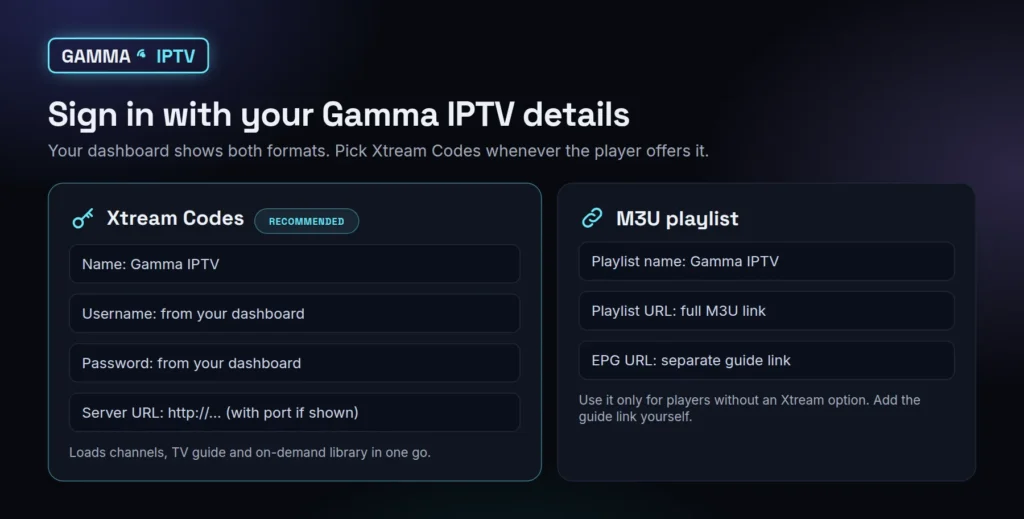
Open the player. Most apps ask how you want to add your service. Your dashboard shows two formats, and you only need one of them.
Xtream Codes (recommended)
Choose the option called Xtream Codes, Xtream API or Login with Xtream. Then fill in:
- Name: anything you like, for example “Gamma IPTV”.
- Username and password: copied exactly from your dashboard. They are case-sensitive.
- Server URL: including
http://orhttps://at the start and the port number at the end if the dashboard shows one (for example:8080).
Xtream Codes brings in the channel groups, the TV guide and the movie library in one go, which is why we recommend it. Typing on the Fire TV remote is slow, so take your time; one extra space at the end of the password is enough to cause a login error.
M3U playlist (only if the player has no Xtream option)
Choose M3U, Playlist or Add playlist URL, give it a name and paste the full M3U link from the dashboard. The TV guide is a separate link: add the EPG URL in the player’s guide or EPG settings, not in the playlist field. The difference between the two formats is explained in M3U vs Xtream Codes.
Save, and give the player a minute or two to load the channel list the first time.
Step 6: test playback before you organise anything
It is tempting to start hiding categories and building favorites straight away. Test first; it makes problems much easier to spot.
- Play one live channel for a couple of minutes. Check that picture and sound are smooth and in sync.
- Open the TV guide. Check that it shows programs and that the times match your time zone.
- Play one movie or series episode from the on-demand section.
- Stop playback on other devices while you test, so you are not hitting your plan’s device limit by accident.
If all three work, now is the time to tidy up: hide the categories you never watch, add your 15 or 20 everyday channels to favorites, and set the guide to refresh once a day. Our TiviMate guide and IPTV Smarters Pro guide show where those options live in each app.
Step 7: make the connection behind the TV better
A Firestick usually sits behind the TV, which is one of the worst spots for Wi-Fi: the TV itself blocks part of the signal. A stick can show a weak connection even when your phone, a few feet away, looks fine.
- Use 5 GHz Wi-Fi if your router offers it, and keep the router in the same room or one wall away.
- Use the HDMI extender that came in the Firestick box. Moving the stick a few inches away from the back of the TV often helps more than you would expect.
- Try an Ethernet adapter. Amazon sells one for Fire TV, and a cable is the most reliable fix for live sports. Wi-Fi vs Ethernet for IPTV explains when it is worth it.
- Pause big downloads (game updates, cloud backups) while you watch.
As a rough guide you want around 25 Mbps available for one HD stream with some headroom; more screens need more. How much internet speed you need for IPTV has the full numbers.
Step 8: troubleshooting Gamma IPTV on Firestick
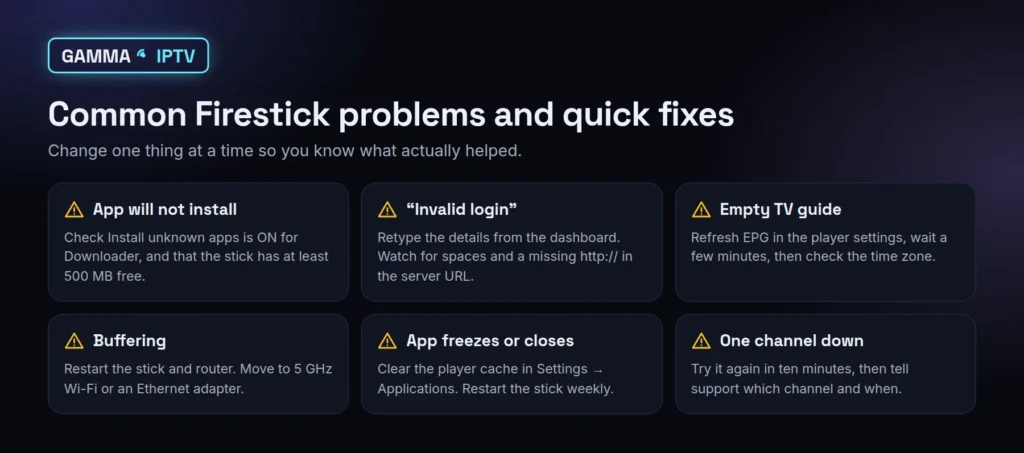
Change one thing at a time and test after each change. That way you know what actually fixed it.
The player will not install
- Check that Install unknown apps is on for Downloader.
- Free up space: Settings → Applications → Manage installed applications, then uninstall apps you do not use.
- Make sure you typed the dashboard code correctly. If your stick runs Vega OS, Android install files will not work; use an Appstore player instead.
“Invalid username or password” or nothing loads
- Retype the details from the dashboard. Watch for spaces, and check upper and lower case.
- Confirm the server URL starts with
http://orhttps://and includes the port if one is shown. - Make sure your trial or plan is active in the dashboard. An expired trial gives the same error as a typo.
The TV guide is empty or the times are wrong
- Open the player’s settings and choose Update EPG or Refresh guide, then wait a few minutes.
- Check the time zone setting in the player.
- If you used M3U, check that the EPG link is in the guide settings, not the playlist field. What is an EPG? explains how the guide works.
Buffering or freezing
- Restart the stick properly: hold Select + Play/Pause for five seconds.
- Restart the router (unplug for 30 seconds).
- Move to 5 GHz Wi-Fi or a wired adapter, and try the lower-quality version of the channel during big events. The complete list is in how to stop IPTV buffering.
The app crashes or closes
- Go to Settings → Applications → Manage installed applications → your player → Clear cache. Do not choose Clear data unless you are ready to sign in again.
- Update the player, and restart the stick once a week.
Sound and picture are out of sync
- Stop and restart the channel. If only one channel is affected, tell support which one and when.
- If every app is out of sync, check the TV’s or soundbar’s audio delay setting before changing anything in the player.
For error messages not listed here, our article on IPTV not working on Firestick goes through each one in detail.
Getting help without sharing your password
If you get stuck, contact Gamma IPTV support and include:
- your Fire TV model and software version (Settings → My Fire TV → About)
- the player app and its version
- whether you used Xtream Codes or M3U
- the exact error message, or a photo of the screen
Hide your password and any playlist link before you send a screenshot. We never need your password to help, and we will never ask you to pay anywhere except on this website.
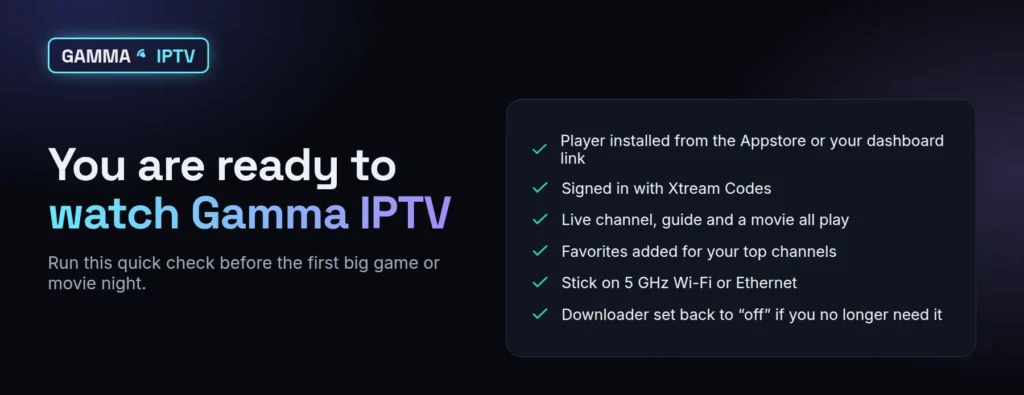
Once the checklist above is ticked, you are set. If you have not chosen a plan yet, compare the Gamma IPTV plans; every plan works on Firestick, from one device up to five streaming at the same time.
Frequently asked questions
Is there a Gamma IPTV app in the Amazon Appstore?
No. Gamma IPTV is the service, not an app. You install a player app, such as IPTV Smarters Pro or TiviMate, and sign in to it with the details from your Gamma IPTV dashboard.
Do I have to turn on Developer options?
Only if your player is not in the Appstore and you install it with Downloader. If the Appstore has the player, install it from there and leave Developer options alone.
Can I use one Gamma IPTV login on two Firesticks?
You can sign in on as many devices as you like, but only the number of devices in your plan can stream at the same moment. A 1-device plan plays on one screen at a time.
Will Gamma IPTV play in 4K on my Firestick?
Only on a 4K-capable stick connected to a 4K TV, and only on channels that are broadcast in 4K. Most live channels are HD, which looks sharp on every Fire TV model.
Do I need a VPN to download Gamma IPTV on Firestick?
No. A VPN is not needed to install or use Gamma IPTV. Test without one first; in most homes a VPN only adds a little delay.
Sources and further reading
How we write and update guides: editorial policy.